
A WordPress maintenance onboarding checklist should define a regular routine for backups, security monitoring, updates and checks of key site functions. Control plugin and theme updates so someone can check the site afterwards; treat security releases according to the agreed process. The checklist should also state which changes need approval and how completed work is reported.
Automatic updates can reduce routine work, but they do not eliminate the need to check for compatibility issues. That matters especially when a site handles enquiries, sales or other essential tasks.
This checklist covers choosing an update approach, setting routine checks and documenting access and responsibilities. It also explains how to record security findings, handle approvals, report completed work and track follow-ups, so maintenance starts with a clear handover and a defined next step when something needs attention.
Key Takeaways
- Set a weekly routine for backups and checks of key site functions, with a clear restore process if something goes wrong.
- Use security scans to identify risks, then prioritise findings by severity and agree how they will be handled.
- Choose automatic updates carefully: updates still need compatibility checks, especially when they affect important site features.
- Agree approval rules and reporting expectations at handover so completed work, outstanding issues and follow-up actions are clear.
Weekly checks for security fixes, backups, uptime and forms
A WordPress maintenance onboarding checklist should explain how to recover the site before maintenance begins. Create a complete backup of WordPress files and the database, with one copy on the website server and another stored remotely. The remote copy helps protect recovery data if the server has a problem.
Record the backup schedule, retention details and restore procedure. Before changes begin, confirm that a recent copy exists and that the person responsible for maintenance can follow the recovery steps. The backup log should show when each copy ran, where it was stored and whether the job failed.
- Review the backup log weekly. Confirm the latest scheduled backup completed, and investigate failures before making site changes.
- Set backup frequency around site activity. Schedule backups daily or weekly depending on how often pages, orders or other important data change.
- Test restoration monthly on a test site. Check that files and database content return correctly, then confirm key pages and functions work.
- Keep restore instructions with the handover. Record storage locations, retention details and the access needed to retrieve each copy.
- Map administrator access before maintenance. Document WordPress, hosting and backup access, then remove accounts for people who no longer need them.
- Keep an emergency administrator account under business control. Give the maintainer separate named access instead of relying on shared credentials.
- Use staging for changes with compatibility risks. Test larger or sensitive changes away from the live site before approving deployment.
- Review core, plugin and theme updates weekly. Apply suitable security fixes, then check key pages for errors or other problems.
- Check uptime and forms weekly. Confirm the site responds, then submit a test enquiry and verify it reaches the intended destination.
- Keep repeatable acceptance tests. Include forms, checkout, login, email, integrations and scheduled tasks in the WordPress maintenance onboarding checklist.
Security and malware scans
Set daily security monitoring to catch alerts between weekly maintenance visits. A scan can flag malware, unfamiliar files, outdated software and changes to administrator accounts. The review should also cover WordPress user roles, database access and any accounts that no longer need access. Remove unnecessary permissions rather than leaving them active.
Schedule a complete security scan monthly, alongside the weekly checks for plugin and theme updates. Scans identify possible issues; a person still needs to assess each finding. Correct critical or high-risk vulnerabilities immediately. Review medium-risk findings within 24 to 48 hours, then record the decision and any follow-up action.
- Check security alerts daily. Review new warnings and confirm whether they concern the live site, a plugin or an inactive component.
- Use strong, unique passwords. Apply separate credentials to WordPress administration, FTP and the database, so one exposed password doesn’t unlock every layer.
- Enable multi-factor authentication. Add another sign-in step for administrator accounts, and use limited login attempts to reduce repeated guessing.
- Audit users and permissions. Match each account to a current role, remove access that is no longer needed, and review unusual login activity.
- Transfer credentials securely. Share access through a secure credential-sharing method, not in an email or support ticket. Confirm receipt, then avoid retaining shared copies.
- Review scan results in context. A broken file or warning needs investigation before removal; deleting a required component can cause site problems.
Keep a concise record of each scan: its date, tool, findings, severity and any action taken. For an unresolved warning, record who is responsible and the next review step. This gives the next maintenance review a clear starting point.
For ongoing WordPress threat monitoring and remediation, managed security support can provide a structured way to handle scan findings.
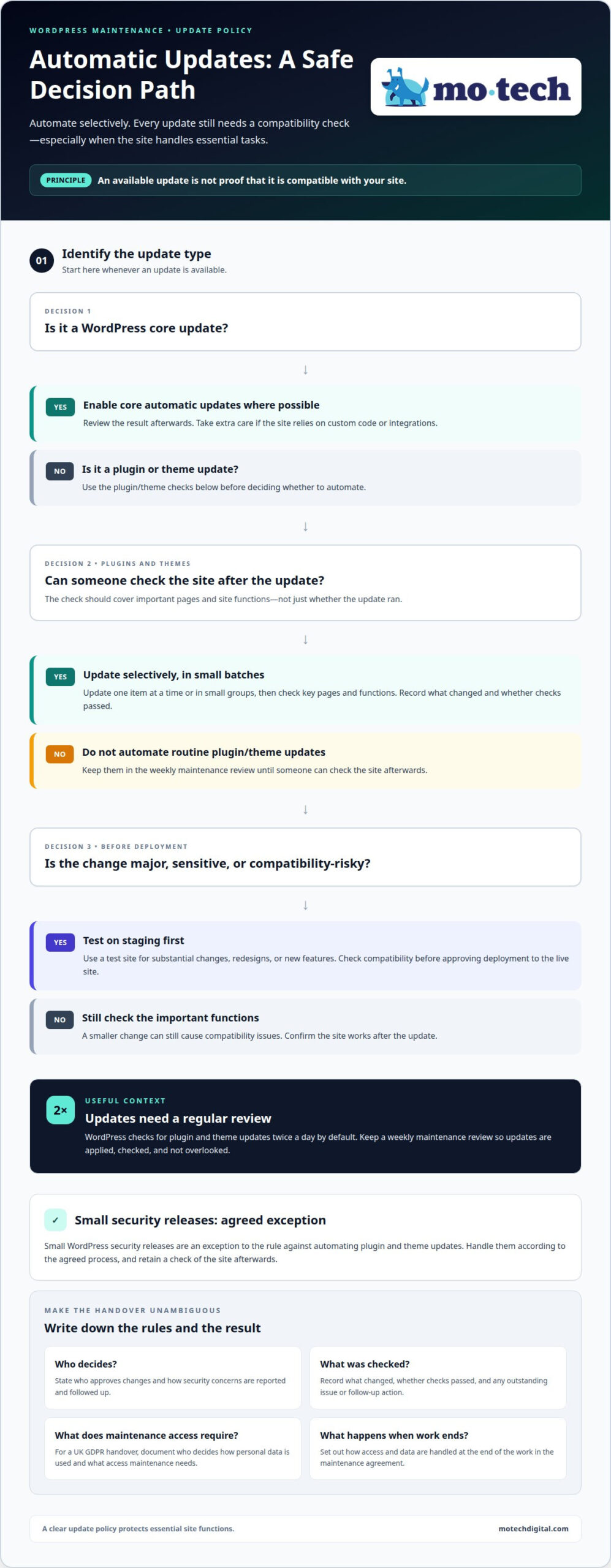
Should I turn on automatic updates for plugins and themes?
Use automatic updates selectively. WordPress checks for plugin and theme updates twice a day by default, but an available update can still cause compatibility issues. Review updates regularly so they are applied and checked rather than overlooked.
For a UK GDPR handover, document who decides how personal data is used, what access maintenance requires, and how access and data are handled when the work ends. Set out these responsibilities in the maintenance agreement, including how security concerns are reported and followed up.
UK WordPress maintenance prices depend on site complexity, update volume, security needs and support scope; a price is provided after a quote request.
- Enable WordPress core automatic updates where possible. Review the result afterwards, especially if the site relies on custom code or integrations.
- Handle plugin and theme updates in small batches. Update one at a time or in small groups, then check important pages and site functions.
- Use staging before major or sensitive changes. A redesign or substantial new feature can affect several components, so test compatibility before deployment.
- Keep plugin and theme updates under review. Don’t automate them unless someone will check the site afterwards; small WordPress security releases are an exception.
- Include updates in the weekly maintenance schedule. Record what changed and whether checks passed, so the next site owner can see what may explain a problem.
- Remove unused plugins and themes. Review deactivated components and delete those no longer needed, reducing avoidable security exposure.
- Review user accounts and permissions. Remove accounts that no longer need access, and keep a named owner responsible for approving new administrator access.
After each update round, test the homepage, a key landing page and a working form. If an error appears, pause further changes, identify the most recent update and follow the restore process before resuming.
Client reporting, approvals and follow-up work
Set approval rules in the maintenance agreement before routine work begins. Define included tasks, exclusions, who can approve changes and which contact handles escalations. For example, routine security fixes can follow an agreed process, while a new feature waits for approval. Clear boundaries stop maintenance from turning into an unplanned rebuild.
- Record the approval route for each change type. Name the person who can approve plugin updates, hosting changes, content edits and new features, so work doesn’t stall between teams.
- Separate routine updates from changes with wider impact. An update that could affect checkout or integrations needs a different decision from a minor content correction.
- Report the versions changed and checks completed. List WordPress, plugin and theme updates, then note whether key pages and forms worked afterwards.
- Log problems with an owner and next action. If a server alert or broken form needs more work, record its impact, the person responsible and the agreed follow-up.
- Explain automatic update choices in the report. State which updates are enabled, which require approval, and what checks follow each update round.
- Review uptime reports quarterly. Look for recurring outages or hosting issues, then record whether the pattern needs investigation or a change to the maintenance routine.
- Close each report with outstanding decisions. Separate completed work from approvals still needed, so the wordpress site owner can act without searching through technical logs.
Keep reports brief enough to scan and specific enough to support decisions. For example, note that a plugin update completed, the enquiry form passed its test and a hosting warning remains open for review. Keep follow-up work marked as outstanding until the issue is resolved or the next action is agreed. The report then serves as a working record, not just a summary of activity.
For a consistent reporting and approval process across agency accounts, discuss a white-label maintenance handover.
Mo•tech: White Label WordPress Support
mo•tech provides White Label WordPress Support for digital agencies that need dependable maintenance delivered under their own brand. It is a practical option when routine checks, update decisions, security monitoring and reporting are taking more time than your team can manage.
Include the agreed maintenance routine, approval boundaries and outstanding follow-up work in the handover. This gives support a clear starting point and keeps responsibilities visible. For additional site work, mo•tech also offers Custom Builds, Managed Security, and SEO & Performance.
If your agency needs a reliable WordPress maintenance partner, contact mo•tech to discuss your requirements.
Make maintenance part of your agency’s routine
A handover is most useful as a working agreement, not a document left untouched. Use the WordPress maintenance onboarding checklist as a starting point, then adapt it to how your agency manages client work. Keep responsibilities clear as projects change, features are added or team members move on. This makes it easier to spot when the maintenance arrangement needs updating, rather than relying on outdated assumptions.
The next step is to decide where your team needs additional WordPress capacity. mo•tech provides White Label WordPress Support for agencies, alongside Custom Builds and Managed Security. If you’re considering external support, bring your current process and priorities into the conversation. Contact mo•tech about WordPress care to discuss a suitable next step. A clear working arrangement gives your team room to focus on client delivery with greater confidence.
Frequently Asked Questions
What should be ready before WordPress maintenance starts?
Before work begins, share the maintenance scope, site contacts and change history. Include the site’s main purpose, important user journeys, planned launches and known problems. A shop might flag a busy sales period, while a membership site might identify member sign-in as a critical task. This context helps set priorities and avoid poorly timed changes.
How do I know a WordPress backup actually works?
A backup is useful only if it can be restored and the recovered site works as expected. On an isolated test site, check that pages load, media appears and important database content is present. Sign in to WordPress and test a key user journey, such as submitting an enquiry. Record the result alongside the recovery instructions, not just the backup completion message.
How long does all this take?
Setup time depends on the number of sites, their complexity and how complete the handover records are. A site with documented integrations and working access is quicker to assess than one with custom code, unclear ownership or missing credentials. The initial review establishes the work involved; access delays and unresolved technical issues can postpone the start of routine maintenance.
What should I do if an update breaks my site?
Pause further updates and record the change that preceded the fault. Note what visitors see, which pages are affected and whether the issue occurs on mobile, desktop or both. Follow the agreed recovery plan, then retest the affected user journey before resuming maintenance. Keep an incident record of the cause, actions and outcome so a similar failure is easier to recognise.
What information should a WordPress maintenance client provide during onboarding?
Provide the site’s purpose, important workflows, known technical issues and a list of integrations, such as booking or payment tools. Share recent changes and any scheduled launches that could affect update timing. Name the person who approves non-routine work and the contact who receives reports. This gives the maintenance team the context to prioritise changes and raise decisions.
What access and permissions are needed for WordPress maintenance onboarding?
Map the access needed for WordPress administration, hosting, the domain registrar, DNS, backups and relevant third-party services. The business should retain ownership of primary accounts, billing and recovery details, while the maintainer receives named technical access for assigned work. Keep an emergency administrator account under business control, and review access when responsibilities change or someone no longer needs it.